Thursday, December 26, 2013

How to turn off iPhone screen when using Skype [Tips]

This is one of those posts that a few of you might think – “I already knew this” or “Does this really deserve a post?“. But I am gonna post it anyway, because its one hell of a useful tip if you’re a regular user of this iPhone application and didn’t figure this out before.
The Skype Application supports calls using the iPhone headphones, and of course it comes with loads of features – one of which is to turn off the screen using iPhone’s built in proximity sensor.


To disable the iPhone screen when using the headphones, flip the phone so that the screen lies on a solid surface when you’re on call.
Voila, that was the tip – Apparently when we do this, the proximity sensor not only turns off the screen/back light but also(indirectly) helps give you longer battery life and doesn’t heat up the iPhone.
The other versions of this tip would of course be to put a business card on the iPhone’s proximity sensor and something similar, but I found flipping the phone to face a soft surface to be the simplest.
You could also use a slip in case which has the same effect.
Beware to place the screen only on a soft surface or if you already use a case, it’d help you keep the phone a few mm’ above the surface, still triggering the proximity sensor.
credits to: http://woikr.com/

Monday, December 23, 2013

Hidden folder without name or icon

Quick little tutorial on how to make a hidden folder in Windows 7.
The folder will have no name and it will be completely invisible unless you highlight it.

What you need:

1) Windows 7

2) The Windows 7 sidebar (Preferably the Calender app)

3) Some computer knowledge

And that's about it!

Tutorial:

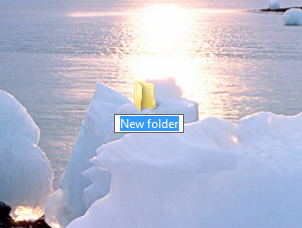
First, make a new folder on the desktop: [1]


Step 2): Right click on the Folder and go to customization: [2]

Step 3): Click on "Change Icon..." And scroll right till you see an icon with nothing like as shown: [3]


Step 4): Now click Ok then click Apply and you should get something like this: [4]

Step 5): Now click start then type in character map in the search bar. Open it and find a blank space. I will show you the slot to make it easier to find: [5] Click select then copy. You will see nothing in the "Characters to Copy" bar, that is perfectly fine.
 

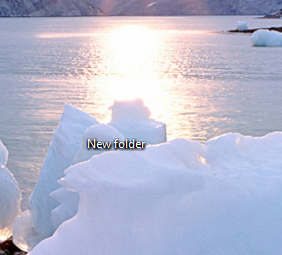
Step 6): Now right click on the folder and click rename. Press CTRL + V and you will get nothing as the name. When you click apply, nothing should show up as the name: [6]


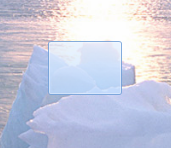
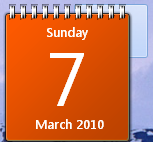
Step 7): Now find the folder and the calendar sidebar app. Drag the Calender out of the way and put the invisible folder where the Sidebar is. Drag the Calender app infront of the folder and you won't be able to see it anymore: [7]


And that's about it! Put whatever you want it in it and nobody but you should be able to find it unless they have a strong eye or they highlight everything and look closely. Hope you liked the tutorial!

Credits :  http://tips.paddyonline.net/ 

AK-47 rifle inventor Mikhail Kalashnikov dies at 94

PanARMENIAN.Net - Mikhail Kalashnikov, the 94-year-old inventor of the world’s most popular firearm, the AK-47, died Monday, Dec 23, in a Russian hospital, a local government official said, according to RIA Novosti.
“We received sad news today: legendary small-arms inventor Mikhail Kalashnikov died at the age of 94 after a prolonged illness,” Viktor Chulkov, a spokesman for the head of the Udmurtia republic, Kalashnikov’s home region, said in Facebook post.
Kalashikov had been recently admitted to an intensive care unit at a hospital in Udmurtia’s regional capital, Izhevsk, while “in serious but stable condition,” according to the local branch of Russia’s Health Ministry.
In June, the famed weapons designer underwent an operation in Moscow to have a pacemaker implanted.
Photo: RIA Novosti

Saturday, December 21, 2013

A trick to figure out which apps to keep on your first Home Screen

 The first Home Screen of your iPhone or iPad is pretty important, when you think about it. It’s the easiest screen to reach with the Home button, so a lot of people want to keep their most important apps on it. But how do you decide which apps should be there?
One obvious approach is simply to think about the tasks you do on your device most frequently, then arrange apps and folders accordingly. Unless you roll with daytime and nighttime iPhones, your first Home Screen might be all work, all play, or a mix of both.
A handy trick that might help you pick the best apps for your first Home Screen is to check the app switcher every now and then. If you double-tap the Home button, you’ll see the apps, in order, that you used most recently. Swipe to the left and you’ll see more.
At least some of the apps you see regularly in the first 1-3 collections of the app switcher are probably prime candidates for your first Home Screen. You may find that apps you previously buried in a folder on the last page are the ones you use most frequently, and moving them to your first Home Screen can save you some daily time and effort digging to find them.

Via: http://finerthings.in/featured/  by creative commons licence

How to: Enable Multiple User Accounts on Android 4.2 and Above

by Jeffrey Taylor
Recently, my assistant approached me about a certain Android tablet. Of course, the question was, “is [off brand tablet] good?” And of course, I’d never heard of the off-brand tablet. The purpose of my assistant’s request was to get a tablet for her 3 year-old son, and the off-brand tablet promised “kid controls” and “parent protection.” I really questioned my assistant’s decision, especially since she received the Nexus 7 tablet for Christmas last year.

The best part of Android is user accounts

Okay, well maybe they’re not the best part, but if your tablet runs any version of Android above 4.2, then you have the ability to set up various user accounts. As I explained to my assistant, she could set up a user account for her son that would only allow particular apps.
Android 4.2 really revolutionized how people can interact and protect their Android devices. The introduction of user accounts means that multiple people can all use the same tablet. In my house, that means the kids have their own account with specific apps (mostly games).

The separate account gives the users an ability add the apps (you) they want, set the features they want, and enjoy the Android experience.

Making user accounts happen

Setting up the account is quite easy.
Open Settings.
Click Users under Device.
After you click Add user or profile, you’ll have the option of setting up two different types of user profiles: restricted and regular.
My assistant will use the restricted profile to keep her son from accessing inappropriate apps.

A few words about user settings

Remember, only restricted profiles will allow you to control what content is available on the user’s account.
The Application and content restrictions screen will give you the ability to turn “on” or “off” particular apps already installed on your Android tablet.

Simply click the on/off button to allow the user to access the app.

Making user accounts work

Here are a few tips for making good use of user accounts, and possibly limiting some frustration for you.
First, these tips only apply to restricted profiles. Regular user accounts function like the main user’s account, except the original user controls what accounts are on the device.
Second, the restricted profile will still have access to some settings, such as location or applications (to uninstall apps from the profile). Android restricts access to core processes, but you need to know the user can modify some settings.
Third, even with restricted accounts enabled, you should still monitor the types of apps your kids have access to. Further, Android 4.3+ gives you greater “tuning” ability for particular app settings, but the developer still needs to enable that feature.
Finally, I recommend that you restrict any Google Play purchases and require that you enter a password. You can set up that restriction by clicking Use password to restrict purchases in Google Play settings (Google Play > Menu > Settings).
That setting will help limit (or eliminate) costly, unapproved app purchases. Note: a restricted profile shouldn’t be able to download and install apps, but just in case.

Getting a good tablet means good results

Hopefully, my assistant will read this post and make the most of the awesome tablet she already has. User profiles give Android devices running Android 4.2 a greater advantage over older models. If you’re looking for a way to give your kids a tablet, why not restrict a profile on the one you have?

Via:http://thedroidlawyer.com/

Thursday, November 7, 2013

What is Peer-to-Peer P2P

P2P is the acronym for the words “peer to peer”, which means communication between equals. Computers connect and communicate with each other without using a central server, building, optimizing and managing the bandwidth used so that the best path between all nodes or computers is found.
Due to its characteristics, it’s used to exchange files such as music, videos, documents and complete software packages. Some Internet telephone systems use P2P networks to streamline the transmission of voice and sometimes also stream video (take Skype for instance). Another use of P2P networks is for processing and handling large amounts of information.

Types of P2P networks according to their design

Centralized

It maintains a directory on a central server, to which computers make requests to find the nodes that contain the desired content. Its main shortcoming is that the central server is a weak point: if it crashes, nothing works.

Decentralized and structured

Also known as hybrid P2P. There’s no  directory on a central server, but on several independent computers placed in different locations that make the network easily accesible to other computers.

Decentralized and unstructured

There are no existing computers or nodes that function as central request controllers. All nodes can act both as clients and servers.

Characteristics of decentralized P2P

  • Anonymity: users should be able to connect without worrying about their privacy. However, this standard is not always met 100%.
  • Scalability: implies more security, by not relying on a central server and its capabilities.
  • Independence: the user interface does not require an Internet browser and every computer can run as a client or server.
  • Decentralization: handles connections and temporary variables and temporary addresses , and all connected computers are considered equal.

Pros and cons

Advantages

  • Cost: many programs are free, which makes them an attractive option for those looking for free content (the legality of this practice is questionable). P2P programs with legal content also exist and, despite having to pay for membership, are a good choice if you want a good price.
  • Efficiency: using file sharing is easy and fast.

Disadvantages

  • Legality: P2P programes have been questioned for sharing music and videos illegally. This has been a source of controversy.
  • Spyware: many programs are riddled with spyware or malware, causing a sluggish performance of your computer, or for it to stop working.
  •  
Via: http://fikobservatory.com/  by creative commons licence.

Monday, March 11, 2013

Forget Where You Parked? This Iphone App Reminds You


Remembering where you park in a big city can be a headache. But a new iPhone app called Find My Car Smarter works with a a small Bluetooth device that you place in your car to relieve it.
The Find My Car Smarter project raised $40,177 on Kickstarter earlier this year in order to manufacture the system's Bluetooth smart devices.

The car finder app is available in the Apple App Store for $0.99. It only works with the iPhone 4S. The Find My Car Smarter device is $25 -- or $30 with a car USB adapter.
To use the app, simply sync the car plug-in with your phone once it's in the car. Upon launching the app, it automatically displays where you parked, how far away the car is and how long you've parked in that location -- great for knowing when the meter's up.
Do you frequently forget where you park? Tell us in the comments if you would use this app to track your vehicle.
Photo courtesy of iStockphoto, PeterMcKinnon
From: t.opne.ws

Licencia Creative Commons
Este obra está bajo una licencia de Creative Commons Attribution 3.0 Unported.